Stream Setup
Open Broadcaster Software (OBS) is an app commonly used for streaming and NEST supports a set of OBS scenes to help you get a stream set up.
- Download OBS
- Download Netplay Tournament Scenes (save this JSON file)
This set of Netplay Tournament Scenes comes with the following:
- Starting Soon scene with BGM and background image
- 4:3 windowed game setup to stream games like MBAACC or other non-Steam games
- 16:9 game setup to stream games available on Steam or other 16:9 ratio games
When importing, ignore any warnings of missing files as you will need to set these yourself with your own files.
Prerequisites
Application Audio Capture Plugin - This is needed for capturing audio from Discord or the games
fgc-scoreboard with customization tool - This is an easy scoreboard to setup and comes with settings in StreamControl to customize colors of the scoreboard and show/hide a logo at the bottom.
Extract the files in the .zip download and open
StreamControl.exein the sc directory to launch the application used to control the scoreboard.
Special thanks to Tarik of WASD Gaming as it builds on the original fgc-scoreboard.
Scene Configuration
Many sources in the OBS scenes can be configured for you to personalize your setup.
| Source | Description |
|---|---|
Comms VC Overlay |
Link to Discord overlay widget to show commentators in a Discord Voice channel to show who is commentating |
Chat |
Use StreamElements or another tool to setup chat visibility on your stream |
FGC Scoreboard |
Point to local file _overlays/scoreboard.hml from the fgc-scoreboard files extracted from Prerequisites download |
Discord Audio |
Set this to capture audio from your Discord window to capture audio from commentary |
Starting Soon BGM |
You can make a .xspf playlist in VLC or similar software and it will play the playlist as scene BGM |
Game Capture and Game Window Capture should be used to capture each game. Game Audio and Windowed Game Audio can also be used to capture audio from respective games.
Recommendations
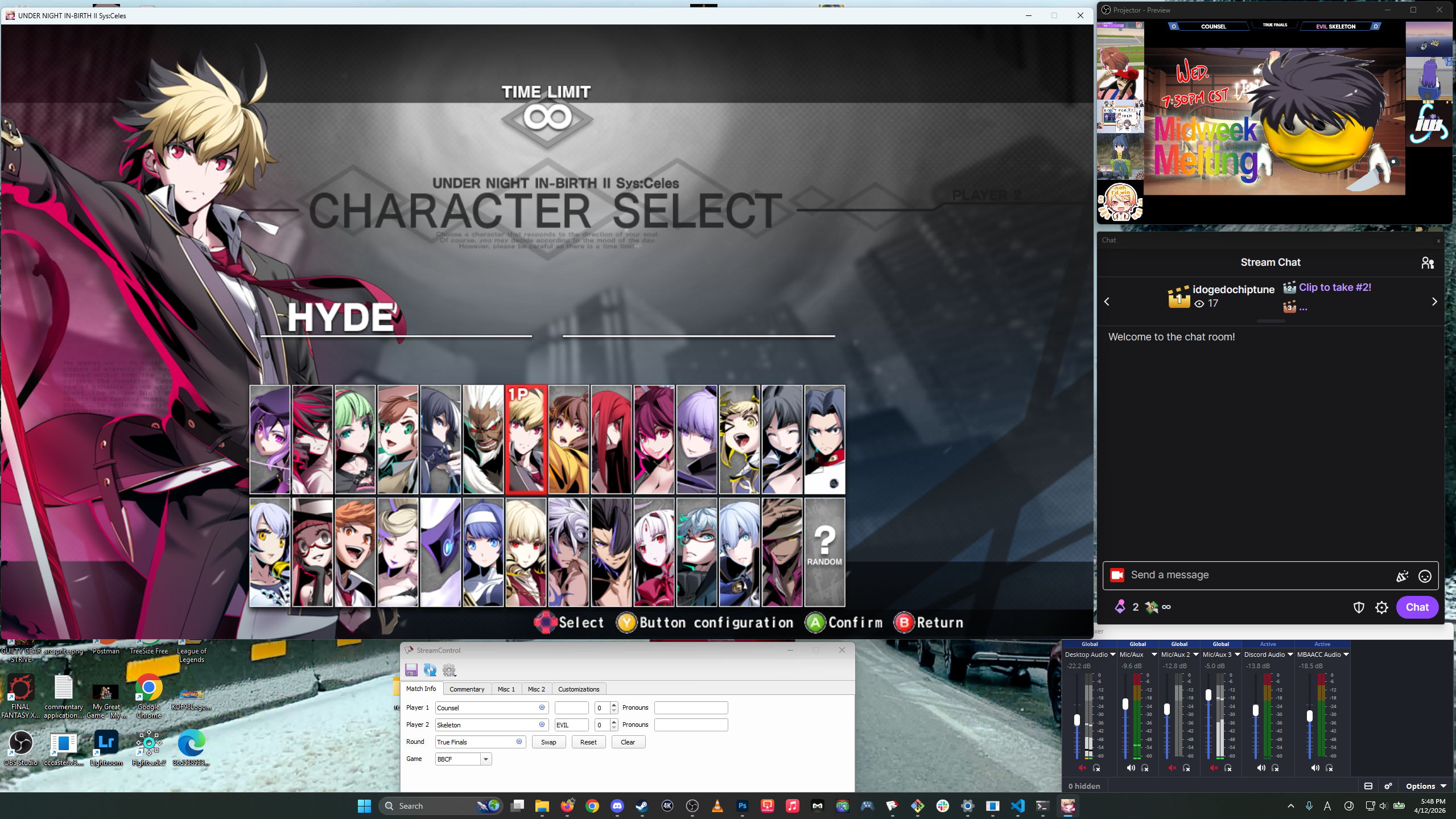
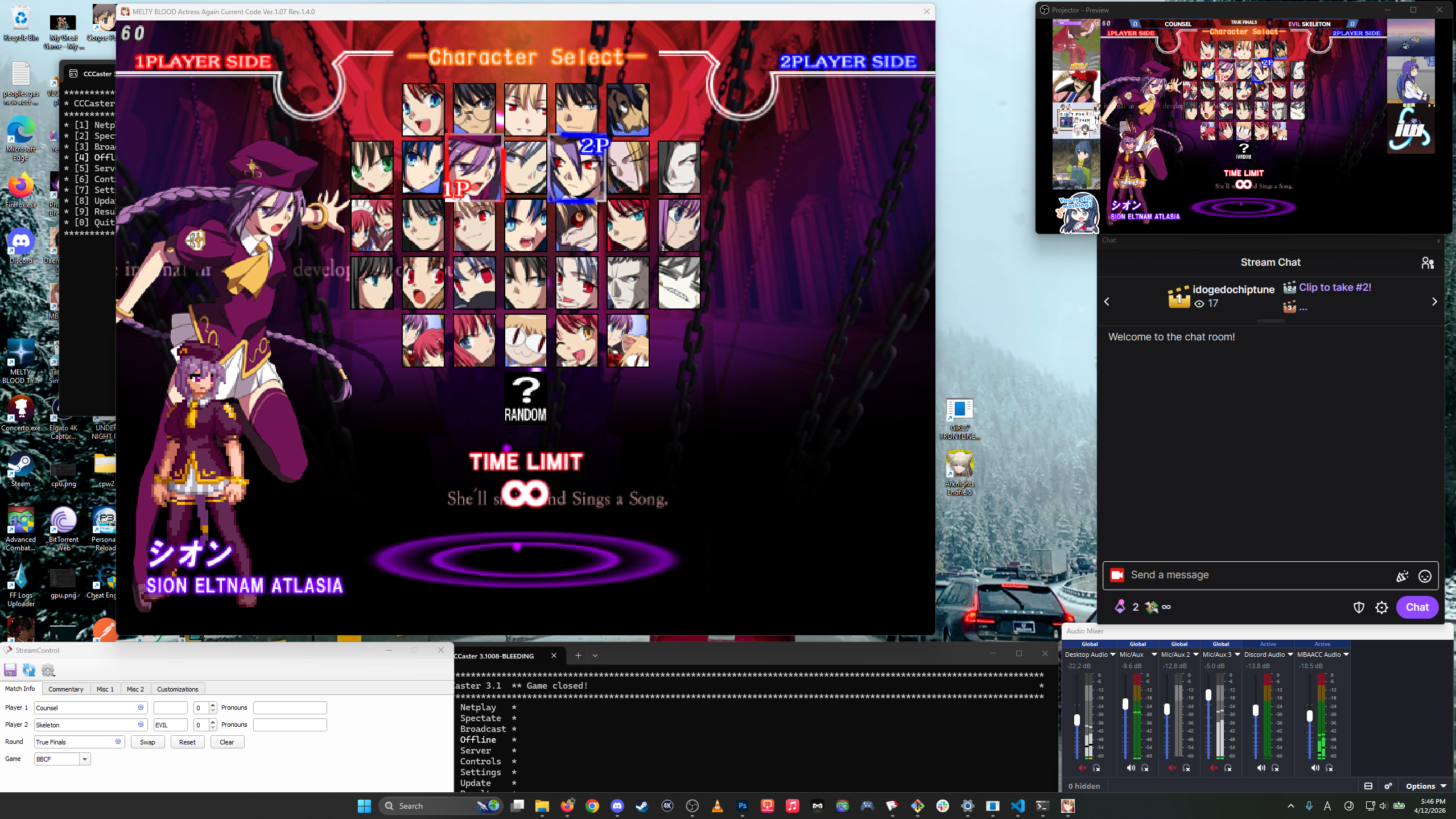
For a smoother commentary experience, it is recommended to run games windowed while using the appropriate game capture. Normal Game Capture is still compatible with Steam games running in windowed mode. Screenshots below show what I setup on the screen I share with commentators when running netplay events.
4:3 Game Example (MBAACC)
16:9 Game Example (UNI2)